Showing posts with label audible books. Show all posts

Monday, June 8, 2015

Amazon Echo now reads your Audible books on command ... Other capabilities recently added involve accessing services outside Amazon's walls ... Getting traffic info - sports scores ... Controlling lights in the home.


Amazon updates their Echo voice assistant and speaker to add direct read of Audible books

This has been a big request.  Earlier, people had to pair phones or tablets with bluetooth to have their Audible books read through the convenient and very clear Echo speaker system.

Amazon's wording:
' Listening to audiobooks from your Audible library is easy. Here's how:

- Start any book you own with "Alexa, read [Audible book title]"
- Resume the current book you're reading by saying "Alexa, read my book."
- Control playback with "Alexa, go back/forward."
[You can, of course, also pause it as needed.]
Echo also supports Whispersync for Voice, which allows you to seamlessly switch between reading and listening with your eligible Kindle books.  You can read on your Kindle, tablet, or smartphone and then continue listening on your Echo, right where you left off. '

While Amazon is offering "complimentary extended samples from popular titles and a free trial," there are ongoing monthly Kindle Book specials that feature inexpensive Audible narrations paired with some of the Kindle books featured at larger discounts for the month.  The product page for that month will sayk, "Add narration for a reduced price of ____ when you buy the Kindle book."

  For June's specially discounted Kindle books ($1.99 to $3.99), you can find the listing of 104 Kindle books that are paired, for June, with reduced-cost Whispersync for Voice here.  (In March there were only 53, so they seem to be expanding these.)

And for those who want to try a free Audible example with a free Kindle book to see how Whispersync works, here's the only one available currently.

Here's the help page for using Whispersync with more information.


Amazon's latest Echo features that allow you to escape its semi-walled garden
The Verge's Josh Lowensohn reported, in early May, on the Echo's new ability to work with Twitter, Gmail, and Evernote, "...plus a few others, thanks to the If This Then That" ("ITTT)" feature.  I'm repeating this section for those who had no interest in the Echo at the time but may be interested in some of the newer features.

  Lowensohn mentioned the recent updates already reported here, "things like Pandora, traffic reports, sports scores, and support for Belkin's WeMo and Phillips's Hue products" and describes the new features' capabilities:
' ... the IFTTT 'recipes' for Alexa let you send your shopping and to-do lists out to third-party services like Google Drive, Evernote, and Todoist

... There are 54 combinations in total.  Enabling them requires signing up for IFTTT, then linking it up with your Amazon account.  You also need to go through the motions of activating the various third-party app channels, and approving your accounts there so IFTTT can link everything up behind the scenes. Some of the really good examples so far are:

. Adding your Echo shopping list items to Evernote
. Sending someone a short email with your voice
. Sending someone an SMS with your voice
. Adding Echo shopping list items to the iOS Reminders app
. Adding Alexa to-dos to Microsoft's OneNote '

See the Verge's full article for illustrations and more details on what's involved in using the feature.

Amazon Echo was recently updated to control Wemo switches and Philips Hue smart bulbs in the home, to turn lights on or off in named rooms or to dim or brighten them.

Pandora was added, in May (in addition to iHeartRadio and TuneIn radio features).

The updates are coming quickly lately with more meat to them, and Amazon's obviously serious about making it a key device, as Boston Business Journal's David Harris pointed to Amazon's dedicating an entire floor of its Cambridge, Mass. Kendall Square office "to working on the Echo" and is still recruiting more staff for it, with "a hiring event on May 14, 2015 for roles that run the “gamut of distributed systems, speech/voice recognition, and big data.”


My own use of the Echo
I'm music and info-oriented, so while the device is not super knowledgeable about the universe, I tell 'Alexa' to "Wiki [subject]" which has it go to Wikipedia to read me the first couple of paragraphs, and then it sends the rest of the article to my tablet (or phone). This is helpful when I'm not near my computer and think of something.  It's also good for adding to my Echo Todo and/or Shopping lists when I think of things in the kitchen, and I can just say "Alexa, add [whatever] to my todo list" [or to my shopping list].

  For music, I ask it to "play playlist [name]" and I get about an hour of my favorite music, depending on the genre I feel like listening to.  If interested in an artist, I ask it to play [artist] from Prime (which is free Amazon music for Prime members) or I ask it just to "play [artist] and it asks if I want to listen to the musician on iHeart Radio or Prime, sometimes it chooses TuneIn.  I signed up for Pandora but haven't used it with Echo yet.  The local classical music station sounds surprisingly good on it, though this isn't true of some other stations.

The speaker is very clear, is loud enough that I can't use it at max for most material, has more bass than I thought it would for its size, but it's best with really well-recorded tracks. If the treble range is edgy, it's very edgy on the Echo.  I'd like loudness compensation added in the next version for late night listening at lower volume.

 It's great for my kitchen where I have no speakers and no computer. They've added news-sources for flash news but I'm waiting for them to allow direct-access to specific sources instead of my having to say "Next" a few times when not interested in the current source.

I really like that I can control the volume by just saying "alexa, louder" or "alexa, not so loud" when I'm working in the kitchen. Or asking it, "what's playing?" or "who's singing?" and it tells me the artist and album. If you like a track, you can of course buy it (but you need a confirmation code to do it), and I've added a lot of good, free Prime tracks to my library while listening, by just saying "add this to my library."

  Others are interested in being able to get current sports scores or scores for ealier games, and in getting traffic reports, when we give it starting and ending addresses.  (I haven't used it, as I have lifetime traffic status and recommended alternate routes on my Garmin Nuvi, which is a bargain for what it does, well.)

A post on the Kindle Forums mentioned that TuneIn offers a lot of nearby scanner stations if you use the Echo app to enter, in the Search field at the top,
  'fire and police' -- but it doesn't work well by voice.  Just a curiosity.  TuneIn offers local, national, and int'l radio stations (music, talk) with clear, easy access.

  What's struck me most about the Alexa voice is that its answers are often lightning fast, which I wouldn't expect when it needs to go to the servers, access whatever, and then get back to me with an answer, and even then the speech is so natural, I have found myself saying, 'Thank you.'

  I also found that I sort of enjoy ordering something around :-) ... "Do this, do that, get me this, or that. What, you don't know? Take a class, get trained!"

I do shut off its hearing often, by pressing the microphone icon down, because I don't want it to waste electricity waiting for the word-string 'alexa' to fly by so it can say "Your command is my wish."

  I often just use the remote and press the mic and talk without needing to say her name.  She tries to obey, does what she can, and then stops listening for anything unless I press the remote button.  When will Amazon give us a male voice that takes orders from us?


Echo now does Google Calendar
This is one I waited for, except that i started to use a small printed calendar lately.  Why? I don't know, but it's sort of convenient :-)

  I had a bit of difficulty finding out how to do the linking, but finally found this help page on how to link your Google calendar to Echo, and its instructions are very clear.

  Richi Gupta, with octafinance.com has good details on what you can and can't do with Google calendar, from Echo.


Some Echo tips from the Kindle forums
' Beauty Fool says:
Wow... I just discovered you can get the latest episodes of various NPR, APM, etc shows by simply asking for them.
Case-in-point: "Alexa, play Splendid Table."
Reply: "Getting the latest episode of The Splendid Table from Tune-In."

+++
romper says:
If you ask, "what's the weather or forecast" she will give you only today's weather.  Ask "what's the extended forecast" she will give you the next 7 days...

+++
Cheryl Jones says:
as for the weather you can ask her for 10 days. so you can ask for the weather next sat or the weather for may 30 etc. or you can ask if it will rain next sat.... '

Recent mainstream reviews from mainstream tech writers who use it quite a bit
• "Five months in, it's the most used gadget in my home" - James Kendrick, ZDNet, May 15, 2015
• "It sucks.  It's awesome.  It sucks.  We want two more" - David Gewirtz for DIY-IT - May 21, 2015
• "Amazon Echo review" - Margaret Dornbusch - Gadgeteer, May 31, 2015
• "Amazon Echo talks to Google Calendar (and you)" - (more tips) David Gewirtz for DIY-IT, June 1


Check often: Temporarily-free recently published Kindle books
  Guide to finding Free Kindle books and Sources.  Top 100 free bestsellers.  Liked-books under $1
UK-Only: recently published free books, bestsellers, or £5 Max ones
    Also, UK customers should see the UK store's Top 100 free bestsellers.

  *Click* to Return to the HOME PAGE.  Or click on the web browser's BACK button


Below are ways to Share this post if you'd like others to see it.
-- The Send to Kindle button works well only on Firefox currently.

Send to Kindle


(Older posts have older Kindle model info. For latest models, see CURRENT KINDLES page. )
If interested, you can also follow my add'l blog-related news at Facebook and Twitter
Questions & feedback are welcome in the Comment areas (tho' spam is deleted). Thanks!

Wednesday, July 8, 2009

Is the Kindle only an E-Reader? Why $360259? Why $489379 for the DX?

[Updated for pricing change on July 8, 2009 - 11:48 PM] - Original posting was March 19, 2009 and this has been updated a few times.
New belated update for decreased prices, on November 12

It's a good time to take another look at what the Kindle 2 does for the price.

Many blog reviews and commenters have said that the Kindle is too pricey for "just an E-Reader."  But is that all it is?  Jeff Bezos has mentioned the high expense of the advanced 'radio modem' as well as the newest E-Ink screen, with its 16 shades of gray and a faster processor.

The 24/7 "always On" wireless access to the global net with no time charges for Kindle users would be one reason it's $360 $299 [price reduced July 8, 2009] $259 [price reduced October 6, 2009].

[Prices changed later but am not modifying the part below, written May 2009]
  UPDATED: May 2009 to cover the coming 9.7" screen Kindle DX which has a screen surface area 2.5" times the size of the Kindle 2, priced at $130 more ($489) and with native Adobe support for PDFs.  The other information below remains true for the larger DX.  Amazon is taking pre-orders now, for earlier shipping dates.  Note that the closest big-screen e-reader (Irex Iliad) is $860~ with wireless of some type.

UPDATED: 4/25/09 from original posting of March 19: I've been asked about any additional factors that might justify the cost of the Kindle.  Originally posted March 19, 2009 at 8:07 am upon starting 'A Kindle World' blog, this article now also includes notes on non-Internet-access (non-wireless) features that are missing on other e-readers or which aren't as well implemented on them.  The additional information is integrated with what was written earlier.

Sony's advanced model, PRS-700, has 8 shades but also a touch screen and side-lighting.  Unfortunately, the two hot features on this Sony have caused reviews (see NYT's David Pogue's) citing a loss of clarity as well as even lighting and glare.  While the Sony doesn't have the Kindle's cell-phone style wireless Net access, much less 24/7 access at no monthly (or hourly) cost, the Sony costs more.  It does handle more formats in native format (ePubs and PDFs -- although reviews can be scathing about the readability of its small PDF fonts at highest font setting vs the Kindle's conversion results, but Calibre allows us to convert pdfs, ePub and Lit files to Kindle format now, while MobiPocket Creator converts PDF (and other files) into Kindle format and PDFReader may do a better job with image-based ones.  Stanza is the one to use for those with Macs.  Savory is an experimental utility that converts PDFs ON your Kindle, offering both text- and image-based conversions.
UPDATE - 4/27/09: Amazon bought Stanza today.

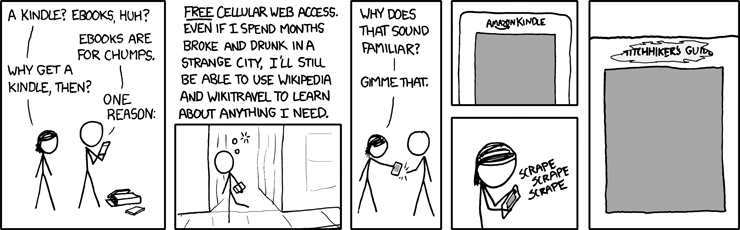
Unlike searches for wi-fi hot spots (often with fees), Amazon's partnership with Sprint for use of its EV-DO cellphone network means that the Net is accessible almost anywhere a cell phone can be used, and with the Kindle there are no monthly data-charges as there must be for phones -- usually at least $30/mo for a limited plan, which at 12 months = $360.  An interesting figure, I thought!


From xkcd

The web access is somewhat klunky although less so with the Kindle 2.  There are 3 modes: Basic, Advanced, and Advanced with javascript - and we can turn images off or on depending on how eager we are for data vs images.  The mobile versions of many websites make access quicker and with better formatting.

I use the 24/7 Net access when outside my home, often at stores where I can decide whether to buy something by Googling the product's model number and adding the word "review" -- this has saved me from some bad buys and also confirmed some possible buys would be good ones.

See my Tips for using the Kindle's web browser more effectively.

I was wishing, one day, that I could go check an internet machine somewhere to get information on something I wasn't sure about buying and suddenly remembered I had one in my purse :-)  At cafes, I often check something on the web.  Though I obviously love using the wireless, I am not out that often, so I don't think it's a super drain on Jeff.   (Click for a larger photo of my earlier Kindle, webbing at a cafe.)
  And here's a photo of my Kindle 2, posting to a forum and Googling a product at Target.

New Amazon fees affect some Kindlefeeder options below.
I also use kindlefeeder.com to get feeds onto to my Kindle each day (a manual click must be done now, for the free service (as automated daily sends will now cost $20/yr), and this includes up to a dozen feeds in your downloaded set (one file with table of contents for each periodical).  but good labor goes into this great service, so Daniel Choi posted that donations are welcome and his users have been responsive.  My subscription at kindlefeeder includes Engadget, Gizmodo, full-feed HuffingtonPost, NY Times Most Emailed, etc.   The set of several daily publications comes as one item each day, with a table of contents listing of and links to each downloaded periodical.  No need, in this case, to use the wireless when reading -- outside of the quick download of the daily set -- unless a feed is mainly summaries with links to the full article online.

But I also subscribe to Amazon's Kindle subscriptions that I find timely and well-written -- those include The New Yorker (w/the cartoons) at $3/mo and the NY Times Latest News, at $2/mo. -- this latter comes 2 or 3 times a day, anytime there's a big headline, which means a meaty story and there are usually about a dozen articles each download.
  While I can and did get The New Yorker feed for free, I prefer the special Amazon formatting for periodicals, allowing fast navigations to sections or to articles within sections and the usual Previous and Next article movement with the 5-way button.  I also love getting the cartoons with it.

MANUALS AND GUIDES FOR PRODUCTS BOUGHT:
I just about always lose my guides or manuals for various electronics and have now gone online to get the pdf versions, which I send to my Amazon Kindle address for auto-conversion and then they're auto-sent to my Kindle, where I can always find them (and am able to search for specific words).  This won't work well with PDFs that are primarily image-scans, as they'd load slowly and be too small for clarity and readability.  (Updated: There's a 15c charge on those conversions and deliveries direct to the Kindle for files up to 1 megabyte in size and 15c per megabyte after, rounded up -- but you can instead choose Amazon's free conversion and delivery to your regular email instead and and you can then transfer the file to the Kindle via the USB cable that comes with it.)

WEB INFO to your Kindle:
If interested in website info you've found, you can highlight the info, copy it the usual way (Windows: Ctrl-c or Mac: Cmd-c) and paste it into Winword or to a basic text file, then e-mail it to your Kindle, at which point it becomes a file of its own readable on your Kindle.  As mentioned in other entries, there are several ways to convert any web info into a PDF file as well, which then can be sent to your Kindle for Kindle-izing, but normally these should not be complex multi-columned pages although the Savory utility can work around that also.  More detailed info on the special image-type conversion here.

SEARCHING A BOOK OR ENTIRE LIBRARY on your Kindle:
The Kindle 2 now searches, as a default, only the book you happen to have open and you have the choice of it searching your entire Kindle library, which will then pretty quickly bring up all the books and periodicals with the word or phrase in question, showing summaries of each, and links to the appropriate pages.
  It also offers a search of google, if you prefer, or the Wikipedia, but you'll be asked to turn on your wireless in those cases.

  A SEARCH TIP from MobileRead forum's "Hemipod":
    "If you use the 5-way control to highlight a phrase, but don't finish the highlight, but instead press a key as if you were starting a search, the highlighted text is copied and pasted into the search box. Very, very easy way to search, say, wiki, for a phrase that's in your book."

INLINE DICTIONARY
Unlike the fatiguing and convoluted inline dictionary process for the Kindle 1, the Kindle 2 has direct cursor access to any word on a book or periodical's page, and if placed on a word, a 2-line definition of the word shows at the bottom of the screen (if the Oxford American dictionary includes the word).  If interested in the full dictionary definition plus pronunciation, you can press the Enter key on the keyboard to get that.  I used to guess the meaning of words via my understanding of the context, and it's been instructive for me :-) to actually use this feature at times.

HIGHLIGHTING, ANNOTATIONS KEPT WITH EACH BOOK (with Amazon library-backups for books bought from Amazon)
  You can easily highlight passages now, including highlighting that goes over several pages if wanted.  You can also make notes with the keyboard.  These are all searchable also, as described above for searching words or phrases.

  If the book was purchased from Amazon, then the store keeps a backed-up copy of your notes and highlighting of any book (kept in your library area at Amazon) so that if you delete the book either for space or to exclude it from your display of current titles on the Kindle, you can later re-download the book at no charge, and your highlighting and notes will be with the book. Your annotations are also kept, for viewing by book, on a password-protected private webpage when you have not disabled backup of annotations to the Amazon servers.  Here's a sample.

CLIPPINGS
The Kindle 2 now allows you to clip an entire article from a subscription newspaper or magazine with the press of a menu option.  These will go to your "My Clippings" file which is pure text.  As with any other e-reader, you can transfer the file to your computer via a USB cable and then edit it, since it collects all the clippings you've been making, which includes an extra copy of all highlighting you've done on various books so that you can use them in your text documents.  That way you can share with friends, if you have a computer, any information that's interested you enough to note it on your Kindle.  If you decide to delete the current "My Clippings" file from your Kindle the unit will create a new one for you the next time you highlight or make notes about something or when you request a clipping of an article you're reading in a periodical.  Otherwise, the Kindle just appends new notes to the file.

FONT SIZING AND LINE SPACING OPTIONS
I often find when reading normal books or magazines now that I almost instinctively start to make a movement to enlarge or decrease the font size or the spacing between lines. While almost any e-reader will give you a choice of font-sizes, the Kindle offers 6 font sizes and furthermore offers 9 settings for the amount of spacing between lines. Less spacing distance will get more lines to read on your screen while more distance may make a paragraph easier to read.  Key combo for line-spacing changes: press shift-alt together and then press a number between 1 and 9 to decrease or increase the line spacing from whatever your current choice is.  Default is '3' which is also the default for font size.

COST OF THE KINDLE PARTS
I've been amused by the reaction to recent articles about the cost of Kindle components, the general reaction equating the cost of components for the Kindle to the cost of building a Kindle and deciding that the amount over $185, from the [original] $360 price, makes it a 'cash cow' for Amazon.

 Those writers don't factor in what happens after the builders buy the components -- the manufacturing expense and the expertise to make the many features (beyond the usual e-book) work together well.  After selecting the components and readying the hardware and software conditions for the desired functions (involving a lot of paid people), then there's the mass assembling, transportation, warehousing, marketing, distribution, and management of inventory, plus (in Amazon's case) extensive customer support that's almost instantly reachable and normally more responsive than the usual (the one exception being Amazon's non-response about the lighter font issue of the Kindle 2 vs the Kindle 1).

Then there's the prepaid Sprint wireless, always 'On,' global net access which normally costs $30/mo. to have (minimum limited services) when added to basic cell phone service. That alone can cost $360, though I'm sure Amazon has a very good deal on it as long as we don't overdo the accessing (I might).  As pointed out in several entries here, netbooks given 24/7 cellular network wireless capabilities cost $60/mo. for the unlimited acccess.  Yes, it's faster access, with color, but it's aosl $720/year more on top of a netbook's unit cost

TEXT-TO-SPEECH FEATURE:
While newspapers have duly noted publisher reluctance to allow their books to be read "out loud" by the Kindle 2's automated mechanical-reader voice (they consider this as 'competition' for the professional actors reading novels with human inflections!), most publishers are allowing it. (Some Amazon users and disability rights proponents are boycotting Random House for their clueless policies against this feature)  And of course the feature can be used for reading aloud personal docs or periodicals you've downloaded if you're busy doing something else such as cooking or driving at the moment.   (I want to do a separate section on "Tom," the male voice for the Kindle because that's an intereting story.)  At any rate, this is not a feature most of us would use for any length of time!  But it's useful for the times you want to keep "reading" but must get on to other things for a bit.
  You can speed up or slow down the voice, and it turns pages for you :-).
  See a fun videoclip using the Kindle voice to read a part for a screenplay.

MP3's AND AUDIBLE BOOKS
There is a feature that allows you to play mp3s placed on your Kindle by you but they play only in the order in which they've been put on the reader.  The focus has not been on the Kindle being a music-playing machine.  This allows you to hear some of your favorite music while reading a Kindle book but it's a battery drainer. You can also put mp3s under the 'Audible' folder (since the Kindle plays Audible books also) and play those on demand but cannot read on the Kindle at the same time with this choice.  You can play mp3-audiobooks also.

NON-AMAZON BOOKS:
By the way, Kindle users are not tied to the Amazon store, although it now holds 7,400  20,000+ free books -- mainly public domain classics.  The few free books at Amazon that are not public domain ones (and usually available briefly) are found here.

  Tip:  Here's a long Amazon-forum discussion thread with tips on a million Kindle books (mostly free) for your Kindle from other sites.

OTHER UNUSUAL FORUM DISCUSSIONS
  Tip:  Amazon forum users talk about the unusually creative ways in which they use their Kindles.  Definitely an interesting read.

  Tip:  4/28/09 - Another interesting thread about how watching History Channel (or The Daily Show) and other tv shows about events have caused some to look up Kindle books on the subject that kindled interest :-)

  Tip:  4/20/09 - I was amazed at how many Huffington Post readers apparently have Kindles. In the thread for an article by Danielle Crittenden, some explain to her how much the Kindle can do despite a posting that deems the Kindle good only for reading books and not an Internet-aware device. Below are ways to Share this post if you'd like others to see it.
-- The Send to Kindle button works well only on Firefox currently.

Send to Kindle


(Older posts have older Kindle model info. For latest models, see CURRENT KINDLES page. )
If interested, you can also follow my add'l blog-related news at Facebook and Twitter
Questions & feedback are welcome in the Comment areas (tho' spam is deleted). Thanks!

[Valid RSS]